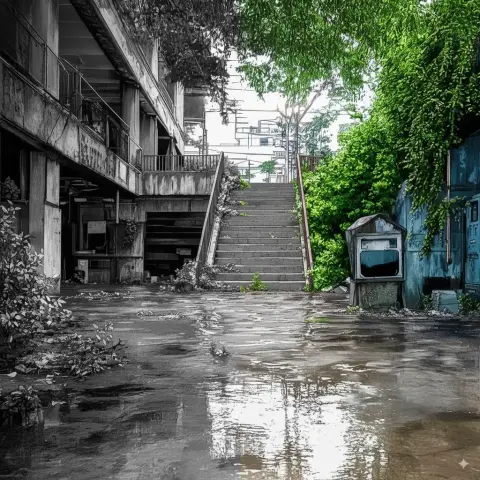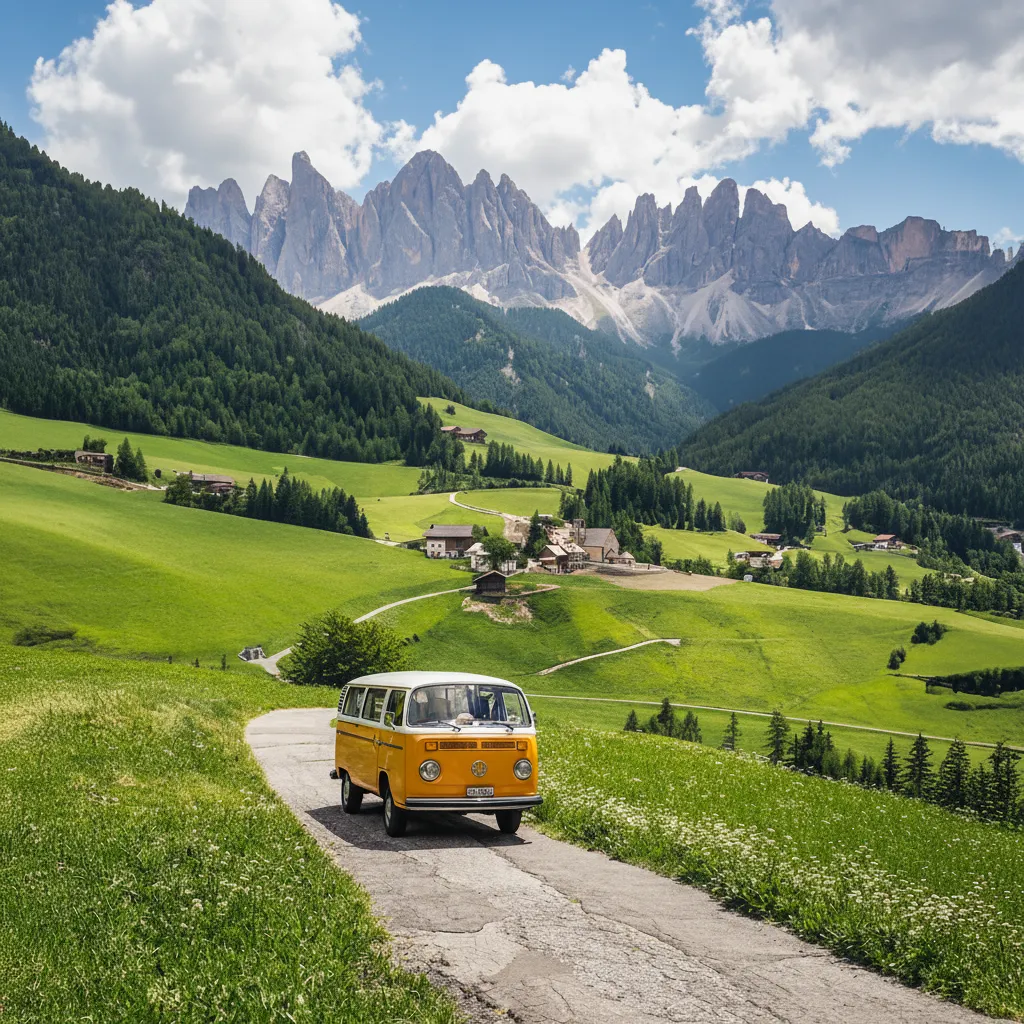
Photo Enhancement
Improve photo quality with sharper details, better color and cleaner lighting
Pro Tip
Say what bothers you, like "brighten the shadows" or "fix the yellow cast", so the edit targets that.
Full Prompt
How to Use Photo Enhancement
- 1
Click Use This Template
The editor opens with [Photo Enhancement] in the prompt box. The full prompt above is applied when you generate.
- 2
Upload your photo
The photo you want improved, such as a dim, soft or low-resolution shot; the original file beats a screenshot.
- 3
Add your own details
Type them after the template name, for example "[Photo Enhancement], brighten shadows, keep natural skin tones".
- 4
Choose a model and generate
NanoBanana 2 is a good place to start: Nanobanana 2 keeps detail from the reference and can output at 2K or 4K, which helps when the goal is a sharper photo.
Good For
- Cleaning up travel or family photos that came out dull or slightly soft.
- Improving a small product image before putting it on a shop page.
- Getting a sharper version of an old phone photo for printing.
More Tips
- Badly blurred faces or text cannot be recovered exactly; the model fills in guesses, so compare with the original.
- Pick an aspect ratio that matches your photo so the scene is not cropped or extended.
Ideas to Try
Type one of these after [Photo Enhancement] in the prompt box.
Brighten
brighten shadows, keep natural skin tones
Crisp landscape
sharpen distant details, richer greens and blue sky
Warm tone
remove the blue cast, warmer evening light