Build AI Image Workflows on an Infinite Canvas
Lay out prompts, reference images and generation nodes on one canvas, connect them, and generate with GPT Image 2, Nanobanana and the site's other models, paid with your credits.
One canvas for every step
Prompts, references and results stay side by side.
Why work on a canvas?
A single prompt box only shows your latest attempt. On the canvas every prompt, reference image and result stays where you put it, so you can compare versions, reuse inputs and branch from any result.
Text, image and generation nodes
Text nodes hold prompts and notes, image nodes hold uploads and results, and a generation node combines the text and images connected to it.
Reference anything with @
Type @ in a prompt to reference a connected image, text, video or audio node. Referenced images show as thumbnails right in the prompt.
Batches stay together
Generating several images at once creates a stacked group. Expand it to compare and pick a main image; a line from the group passes every image on, and a line from one image passes only that one.
Edit images in place
Crop, upscale, split, change the viewing angle or mask an area to redraw from an image's toolbar. Each result becomes a new node.
Learn the canvas
Your first canvas workflow
Add your inputs
Create a text node for the prompt, then upload or drag in reference images. Each one becomes its own node.
Connect and generate
Connect your text and images to a generation node, then pick a model, an aspect ratio and how many images to make.
Review and continue
Results appear as new image nodes. Download them, save them to My Assets, or connect a result to the next step to keep refining it.
Going further
Branch from any result
Connect one result to several generation nodes to try different prompts or models on the same image.
Order your references
A generation node lists its inputs; change their order to control which image the model treats as the main reference.
Mask and redraw
Paint a mask over part of an image and describe the change; the model receives the image and the mask as references.
Undo, copy and shortcuts
Undo and redo, copy and paste nodes with their connections, box-select, and use the minimap on large canvases.
Pass a whole batch or one image
A line from a batch passes all of its images to the next node. Open the batch and connect from one image's own point to pass only that image; on a closed batch the line shows which images it carries.
Let Codex or Claude Code fill a canvas
Connect Codex or Claude Code to the Banana Art Lab MCP server and ask it to generate images onto a canvas by name. Its prompts and results arrive as nodes you keep editing here.
Your canvases on every device
While you are signed in, canvases and My Assets sync to your account, so they open on any device where you sign in. You can also export a canvas as JSON and import it again.
Draft cheaply, finish in quality
Explore ideas with GPT Image 2 Saver at 2 credits an image, then run the prompt you like on GPT Image 2 at high quality or on Nano Banana Pro.
Example workflows
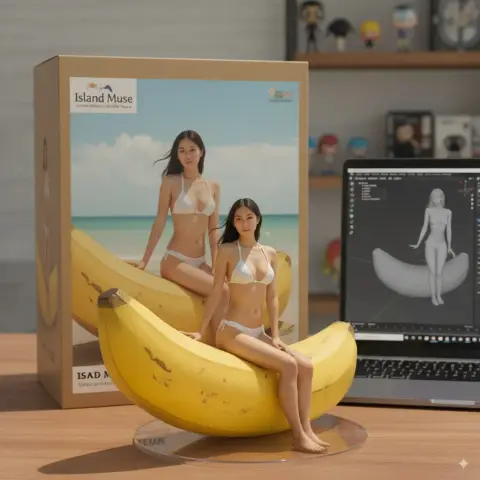
Product photo set
BeginnerOne product photo and a prompt for each scene, generated as a batch with GPT Image 2 Saver.
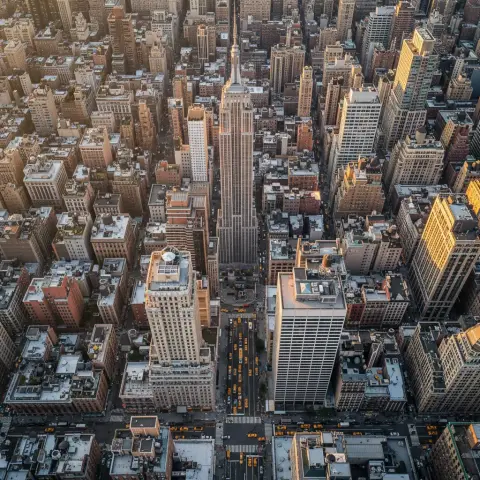
Character in new scenes
IntermediateA character reference connected to several prompts, so the same character appears in every scene.
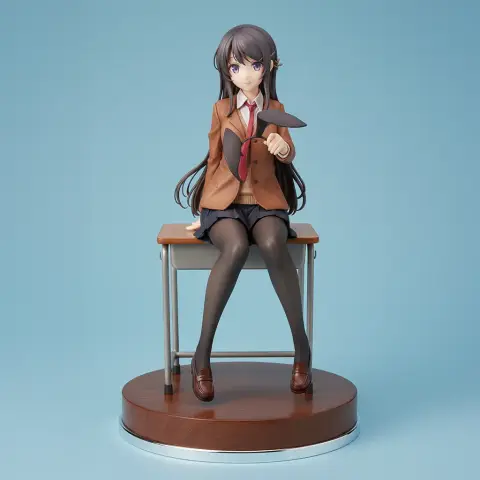
Poster with revisions
IntermediateA first draft, then masked redraws and an upscale of the chosen version for print.
What you can put on the canvas
Inputs
- Text and prompts
- Uploaded images
- My Assets
- Prompt library
Generation
- Text to image
- Editing with reference images
- Batch generation
- Retry and regenerate
Image tools
- Crop
- Upscale
- Split
- Mask redraw
Organize
- Groups
- Connections
- Minimap
- Export and import as JSON
The plugin manager adds more node types, such as Markdown, SVG, HTML, 360° panoramas and sticky notes.
Canvas vs a single prompt box
| Feature | Banana Art Lab canvas | Single prompt box |
|---|---|---|
| See every version side by side | - | |
| No coding required | ||
| Reuse prompts and references | - | |
| Reference several images with @ | - | |
| Batch generation | ||
| Edit results without leaving the page | - |
Looking for a ComfyUI alternative?
ComfyUI is a free, open-source node editor that runs open models such as Stable Diffusion and Flux on your own GPU. The Banana Art Lab canvas also connects nodes, but it runs in your browser with hosted models such as Nano Banana Pro and GPT Image 2: there is nothing to install, and you pay per image with credits.
Choose the Banana Art Lab canvas when
- You want Nano Banana, GPT Image 2 or Seedream without a GPU or any setup.
- You start from prompts and reference images rather than wiring samplers and checkpoints.
- You want to work from any computer, or from Codex and Claude Code.
Choose ComfyUI when
- You have a strong GPU and want to run open models locally for free.
- You need custom nodes, LoRAs, ControlNet or control over every sampling step.
- Your workflows and files must stay entirely on your own machine.
Join the Node Artists Community
Thousands of artists are already creating amazing workflows. Share yours and learn from the best.
10,000+
Active Node Artists
5,000+
Shared Workflows
500+
Daily Creations
Ready to build your first canvas?
Open the canvas and start with your 15 free sign-up credits, enough for seven GPT Image 2 Saver images.