Formal ID Photo Generation
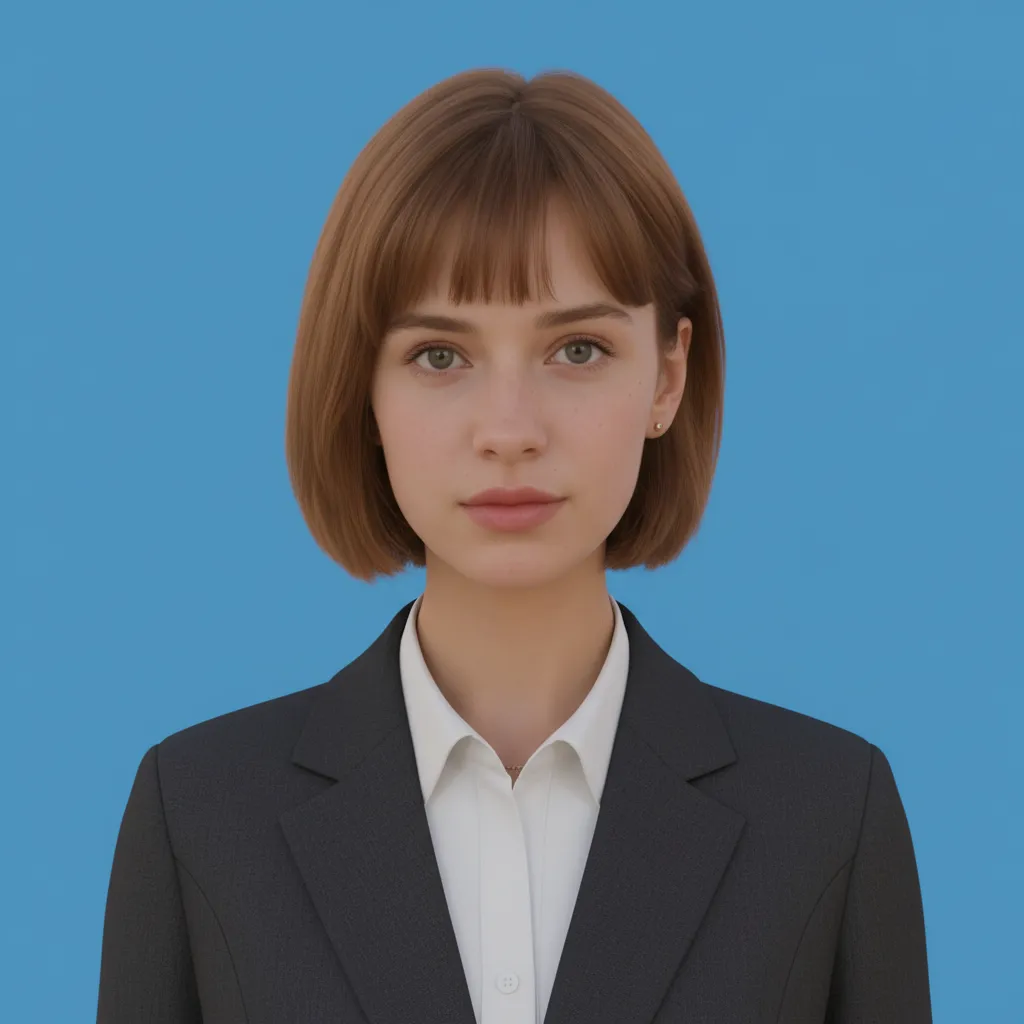
Generate standard ID photos with formal attire based on facial features, with solid color background
Pro Tip
Name the background color and clothing, such as "white background, navy suit, white shirt".
Full Prompt
How to Use Formal ID Photo Generation
- 1
Click Use This Template
The editor opens with [Formal ID Photo Generation] in the prompt box. The full prompt above is applied when you generate.
- 2
Upload your photo
A clear, front-facing photo of your head and shoulders with even light, a neutral expression and no sunglasses.
- 3
Add your own details
Type them after the template name, for example "[Formal ID Photo Generation], white background, dark suit, neutral expression, shoulders square to camera".
- 4
Choose a model and generate
GPT Image 2 is a good place to start: GPT Image 2 is suited to ID-style edits that keep facial details close to the original photo.
Good For
- A tidy headshot for resumes, LinkedIn or company directories.
- Seeing how you look in a suit or blazer before booking a professional shoot.
- Badge or profile photos when you only have casual snapshots.
More Tips
- Pick the 3:4 or 2:3 aspect ratio for a portrait-shaped photo.
- Check the rules before using it on official documents; many passport offices reject edited or AI-generated photos.
Ideas to Try
Type one of these after [Formal ID Photo Generation] in the prompt box.
Passport style
white background, dark suit, neutral expression, shoulders square to camera
Blue backdrop
light blue background, white blouse and gray blazer
Business casual
light gray background, navy sweater over a collared shirt